Getting ready for your support session with OdataLink: Difference between revisions
Jump to navigation
Jump to search
mNo edit summary |
m changed images layout |
||
| Line 8: | Line 8: | ||
= Receiving support via [https://www.teamviewer.com TeamViewer]<ref name="teamviewer" />= | = Receiving support via [https://www.teamviewer.com TeamViewer]<ref name="teamviewer" />= | ||
<div style="float: right;"> | <div style="float: right;"> | ||
<gallery mode=" | <gallery mode="traditional"> | ||
File:teamviewer_dialog_download.png|220px|thumb|Download '''Temporary Session Handler''' app for your OS or '''Launch Application''' | File:teamviewer_dialog_download.png|220px|thumb|Download '''Temporary Session Handler''' app for your OS or '''Launch Application''' | ||
File:teamviewer_dialog_waiting.png|160px|thumb|Waiting for the '''OdataLink Support Person''' to receive connection notification and start session | File:teamviewer_dialog_waiting.png|160px|thumb|Waiting for the '''OdataLink Support Person''' to receive connection notification and start session | ||
| Line 33: | Line 33: | ||
= Receiving support via [https://teams.microsoft.com/ Microsoft Teams]<ref name="microsoft-teams" />= | = Receiving support via [https://teams.microsoft.com/ Microsoft Teams]<ref name="microsoft-teams" />= | ||
<div style="float: right;"> | <div style="float: right;"> | ||
<gallery mode=" | <gallery mode="traditional" perrow=2> | ||
File:Cont_share_expand.png| | File:Cont_share_expand.png|250px|thumb|Teams Admin Center - Content Sharing | ||
File:Recording-tac-expand.png| | File:Recording-tac-expand.png|250px|thumb|Teams Admin Center - Meeting Recording | ||
</gallery> | </gallery> | ||
</div> | </div> | ||
| Line 41: | Line 41: | ||
*Please ensure you have '''Teams Admin Center''' access, or inform your IT team, to enable the following features for '''External Participants''': | *Please ensure you have '''Teams Admin Center''' access, or inform your IT team, to enable the following features for '''External Participants''': | ||
;Steps to enable ''Give or Request Control'' for External Participants | ;Steps to enable ''Give or Request Control'' for External Participants | ||
:*Login to '''Teams Admin Center''', and Navigate to Meetings > Global Policies > '''Meeting Policies'''. | :*Login to '''Teams Admin Center''', and Navigate to Meetings > Global Policies > '''Meeting Policies'''. | ||
| Line 48: | Line 48: | ||
To view the official documentation on '''Content Sharing''', please follow this [https://learn.microsoft.com/en-us/microsoftteams/settings-policies-reference#content-sharing ''link'']<ref name="control-request" /> | To view the official documentation on '''Content Sharing''', please follow this [https://learn.microsoft.com/en-us/microsoftteams/settings-policies-reference#content-sharing ''link'']<ref name="control-request" /> | ||
;Steps to enable ''Meeting Recording'' for External Participants | ;Steps to enable ''Meeting Recording'' for External Participants | ||
:*Login to '''Teams Admin center''' and Navigate to Meetings > Global Policies > '''Meeting Policies'''. | :*Login to '''Teams Admin center''' and Navigate to Meetings > Global Policies > '''Meeting Policies'''. | ||
| Line 55: | Line 55: | ||
To view the official documentation on '''Meeting Recording''', please follow this [https://learn.microsoft.com/en-us/microsoftteams/settings-policies-reference#recording--transcription ''link'']<ref name="meeting-recording" /> | To view the official documentation on '''Meeting Recording''', please follow this [https://learn.microsoft.com/en-us/microsoftteams/settings-policies-reference#recording--transcription ''link'']<ref name="meeting-recording" /> | ||
<br \> | |||
= References = | = References = | ||
<references> | <references> | ||
| Line 64: | Line 64: | ||
<ref name="meeting-recording">[https://learn.microsoft.com/en-us/microsoftteams/settings-policies-reference#recording--transcription Microsoft Learn - Recording and Transcription]</ref> | <ref name="meeting-recording">[https://learn.microsoft.com/en-us/microsoftteams/settings-policies-reference#recording--transcription Microsoft Learn - Recording and Transcription]</ref> | ||
<references /> | <references /> | ||
</div> | |||
Revision as of 05:22, 26 September 2024
OdataLink users may request for support to help with errors, optimizing queries, implementing dataflows and automation, or to build dashboards and reports ready for use.
We provide support through Microsoft Teams and TeamViewer (preferred).
Please setup your environment[1] before starting a support session.
Receiving support via TeamViewer[2]
-
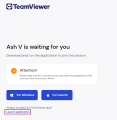 Download Temporary Session Handler app for your OS or Launch Application
 -
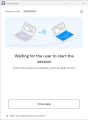 Waiting for the OdataLink Support Person to receive connection notification and start session
 -
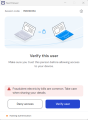 Verify User
 -
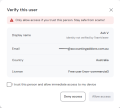 Verify User - Allow Access
 -
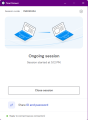 Connection established


A Quick Support link of the format shown in the image would be provided by us. Browse to the link.
- If you have TeamViewer installed, click on Launch application link as highlighted in Red outline.
- A dialog box will be displayed on the browser asking you to allow the URL to open TeamViewer.
- Click on Allow or Open depending on your browser.
- Your TeamViewer session with OdataLink would start automatically.
- If you don't have TeamViewer installed, click on For Windows or For MacOS as per your system configuration.
- A file download dialog will be opened. Allow to download install the Temporary Session Handler
- Once installed, you will be asked to verify the person providing you support. Click on Verify user
- Further details would be displayed on the screen. Verify the details and mark "I trust this person..."
- Click on Allow Access
- Your TeamViewer session with OdataLink would be started.
Receiving support via Microsoft Teams[3]
-
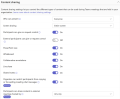 Teams Admin Center - Content Sharing
 -
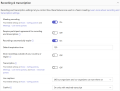 Teams Admin Center - Meeting Recording


To receive Support through Microsoft Teams, please follow the steps below:
- Please ensure you have Teams Admin Center access, or inform your IT team, to enable the following features for External Participants:
- Steps to enable Give or Request Control for External Participants
-
- Login to Teams Admin Center, and Navigate to Meetings > Global Policies > Meeting Policies.
- Under Content Sharing section, toggle External Participants can give or request control switch to ON.
To view the official documentation on Content Sharing, please follow this link[4]
- Steps to enable Meeting Recording for External Participants
-
- Login to Teams Admin center and Navigate to Meetings > Global Policies > Meeting Policies.
- Under Recording & transcription section, toggle Meeting Recording switch to ON.
To view the official documentation on Meeting Recording, please follow this link[5]
References
<references> [2] [3] [1] [4] [5]
- ↑ 1.0 1.1 Your workspace viz. Laptop, Desktop, Fabric Workspace, Shared or Network Drives
- ↑ 2.0 2.1 TeamViewer
- ↑ 3.0 3.1 Microsoft Teams
- ↑ 4.0 4.1 Microsoft Learn - Content Sharing
- ↑ 5.0 5.1 Microsoft Learn - Recording and Transcription