Setting up TeamViewer for support session with OdataLink: Difference between revisions
Jump to navigation
Jump to search
mNo edit summary |
mNo edit summary |
||
| Line 20: | Line 20: | ||
# You will be presented with a License Agreement Dialog Box. Accept the '''License Agreement''' and click on '''Continue'''. | # You will be presented with a License Agreement Dialog Box. Accept the '''License Agreement''' and click on '''Continue'''. | ||
# You will be shown your Connection ID and password. Please share these credentials with the support person. | # You will be shown your Connection ID and password. Please share these credentials with the support person. | ||
# The support person will enter the ID and password provided in the last step | # The support person will enter the ID and password provided in the last step | ||
# Your TeamViewer session with OdataLink will start. | |||
| Line 46: | Line 46: | ||
# Support person's details would be displayed on the screen. Verify the details and tick the "I trust this person..." checkbox | # Support person's details would be displayed on the screen. Verify the details and tick the "I trust this person..." checkbox | ||
# Click on '''Allow Access''' | # Click on '''Allow Access''' | ||
# Your TeamViewer session with OdataLink | # Your TeamViewer session with OdataLink will start. | ||
Revision as of 02:05, 1 October 2024
Please follow the steps below to set up your TeamViewer[1] before a support session with OdataLink.
-
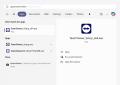 Check if TeamViewer is installed
 -
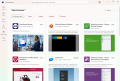 Microsoft Store Listing
 -
 Install TeamViewer
 -
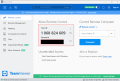 TeamViewer Old Layout
 -
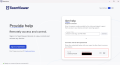 TeamViewer New Layout


Check if Teamviewer is already installed
- Click on Start and start typing Apps: teamviewer.
- If you have Teamviewer installed, click on Open as shown by Blue Arrow. Skip to Step 7.
- If you can't see TeamViewer app, install it by clicking on the MS Store search link under Store, as highlighted in the black box.
- Open the item Teamviewer Remote in the search list and click on Install.
- Once installed, open your TeamViewer app.
- You will be presented with a License Agreement Dialog Box. Accept the License Agreement and click on Continue.
- You will be shown your Connection ID and password. Please share these credentials with the support person.
- The support person will enter the ID and password provided in the last step
- Your TeamViewer session with OdataLink will start.
-
 Click or Copy and Paste the Quicksupport link provided into your browser.
 -
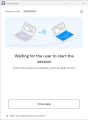 Waiting for the OdataLink Support Person to receive connection notification and start session
 -
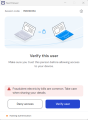 Verify User
 -
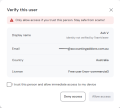 Verify User - Allow Access
 -
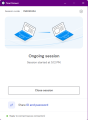 Connection established
 -
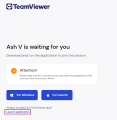 Download Temporary Session Handler app for your OS or Launch Application


Installation is not allowed by IT policy
If installing apps is disabled by your organisation IT policy, Please let us know in advance. Support person will generate and QuickSupport session URL in a format as shown in the image. Please follow the steps below to install an alternative Quick Support Session Handler application:
- A Quick Support link of the format shown in the image would be provided by us. Browse to the link.
- Click on For Windows or For MacOS as per your system configuration.
- A file download dialog will be opened. Allow to download install the Temporary Session Handler
- Wait for a few minutes until the support person starts the TeamViewer session
- Once installed, you will be asked to verify the person providing you support. Click on Verify user
- Support person's details would be displayed on the screen. Verify the details and tick the "I trust this person..." checkbox
- Click on Allow Access
- Your TeamViewer session with OdataLink will start.
Related Topics
- Getting Ready for your Support session with OdataLink
- Enable Content Sharing and Recording in Microsoft Teams for Technical Support