Setting up TeamViewer for support session with OdataLink: Difference between revisions
Jump to navigation
Jump to search
mNo edit summary |
mNo edit summary |
||
| (15 intermediate revisions by 2 users not shown) | |||
| Line 1: | Line 1: | ||
__NOTOC__ | __NOTOC__ | ||
'''TeamViewer''' | We provide support via [https://www.teamviewer.com '''TeamViewer''']. | ||
'''TeamViewer''' | In preparation for your support session, please follow the steps below to set up '''TeamViewer'''. | ||
<div style="float: right;"> | |||
<div style="display: grid; float: right;"> | |||
<gallery mode="nolines" perrow=2> | <gallery mode="nolines" perrow=2> | ||
File:check_installed_teamviewer.png|right| | File:check_installed_teamviewer.png|600px|right|Apps:TeamViewer | ||
File: | File:store_listing_teamviewer.png|600px|Click on "View in Store" | ||
File:teamviewer_landing_old.png|right|TeamViewer Old Layout | File:teamviewer_install_ms_store.png|600px|Click on Install | ||
File:teamviewer_landing_new.png|right|TeamViewer New Layout | File:teamviewer_landing_old.png|right|600px|TeamViewer Old Layout | ||
File:teamviewer_landing_new.png|right|600px|TeamViewer New Layout | |||
</gallery></div> | </gallery></div> | ||
== Check if Teamviewer is already installed == | == Check if Teamviewer is already installed == | ||
# Click on Start and start typing '''Apps: Teamviewer'''. | # Click on the Windows '''Start''' button and start typing '''Apps: Teamviewer'''. | ||
# If you have '''Teamviewer''' installed, | # If you have '''Teamviewer''' installed, skip to '''Step 1''' in [[#Open the Teamviewer app]] section. | ||
# If you | # If you don't have TeamViewer installed, skip to '''Step 1''' in [[#Install TeamViewer from Microsoft Store]] section. | ||
# | |||
# | |||
== Install TeamViewer from Microsoft Store == | |||
# Navigate to [https://apps.microsoft.com/store/detail/XPDM17HK323C4X Microsoft Store - TeamViewer Remote] to install TeamViewer. | |||
# Click on '''View in Store''' button. | |||
# TeamViewer Remote app details page will be displayed in the Microsoft store. Click on '''Install''' button. | |||
# When the installation is completed, Open TeamViewer app. | # When the installation is completed, Open TeamViewer app. | ||
'''''If the installation via Microsoft Store fails''''', please install [[How to manually install TeamViewer on your system | TeamViewer manually]] | |||
== Open the Teamviewer app == | == Open the Teamviewer app == | ||
# | # Open your '''TeamViewer''' app. | ||
# | # If you are opening TeamViewer for the first time, you will be presented with a '''License Agreement and EULA''' Dialog Box. Accept the '''License Agreement''' and click on '''Continue'''. | ||
# | # Please ensure that you are on the '''latest version''' of TeamViewer | ||
# The support person will enter the ID and | # Your unique '''Connection ID''' and '''Password''' will be displayed as per your layout. Please share these credentials with your support person. | ||
# The support person will enter the ID and Password provided in the last step. | |||
# Your TeamViewer session with OdataLink will start. | # Your TeamViewer session with OdataLink will start. | ||
<div style="float: right;"> | <div style="float: right;"> | ||
<gallery mode="nolines" perrow=3> | <gallery mode="nolines" perrow=3> | ||
File: | File:teamviewer_dialog_download.png|right|Download '''Temporary Session Handler''' | ||
File:teamviewer_dialog_waiting.png|right| | File:teamviewer_dialog_waiting.png|right|Wait for session start | ||
File:teamviewer_dialog_verify_user.png|right|Verify User | File:teamviewer_dialog_verify_user.png|right|Verify User | ||
File:teamviewer_dialog_allow_access.png|right|Verify User - Allow Access | File:teamviewer_dialog_allow_access.png|right|Verify User - Allow Access | ||
File:teamviewer_dialog_complete.png|right|Connection established | File:teamviewer_dialog_complete.png|right|Connection established | ||
</gallery> | </gallery> | ||
</div> | </div> | ||
== Installation | == Installation restricted by IT policy == | ||
If installing apps is disabled by your organisation IT policy, Please let us know in advance. | If installing apps is disabled by your organisation IT policy, Please let us know in advance. | ||
Support person will generate and '''QuickSupport''' session URL | Support person will generate and share a '''QuickSupport''' session URL. | ||
Please follow the steps below to install an alternative Quick Support Session Handler application: | Please follow the steps below to install an alternative '''Quick Support Session Handler''' application: | ||
# A Quick Support link of the format | # A Quick Support link of the format '''<nowiki>https://quicksupport.me/s156010354</nowiki>''' would be provided by us. Browse to the link. | ||
# Click on '''For Windows''' or '''For MacOS''' as per your system configuration. | # Click on '''For Windows''' or '''For MacOS''' as per your system configuration. | ||
# A file download dialog will be opened. | # A file download dialog will be opened. Once the download is completed, install the '''Temporary Session Handler'''. | ||
# Wait for a few minutes until your support person starts the TeamViewer session. | # Wait for a few minutes until your support person starts the TeamViewer session. | ||
# Once | # Once the session is started, you will be asked to verify the person providing you support. Click on '''Verify user'''. | ||
# Support person's details would be displayed on the screen. Verify the details and tick the "I trust this person..." checkbox. | # Support person's details would be displayed on the screen. Verify the details and tick the "I trust this person..." checkbox. | ||
# Click on '''Allow Access'''. | # Click on '''Allow Access'''. | ||
| Line 62: | Line 67: | ||
==Related Topics== | ==Related Topics== | ||
:[[Getting Ready for your Support session with OdataLink]] | :[[Getting Ready for your Support session with OdataLink]] | ||
:[[ | :[[Setting up Microsoft Teams for support session with OdataLink]] | ||
<br \> | <br \> | ||
Latest revision as of 01:49, 31 October 2024
We provide support via TeamViewer.
In preparation for your support session, please follow the steps below to set up TeamViewer.
-
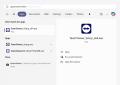 Apps:TeamViewer
 -
 Click on "View in Store"
 -
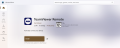 Click on Install
 -
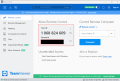 TeamViewer Old Layout
 -
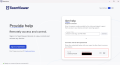 TeamViewer New Layout


Check if Teamviewer is already installed
- Click on the Windows Start button and start typing Apps: Teamviewer.
- If you have Teamviewer installed, skip to Step 1 in #Open the Teamviewer app section.
- If you don't have TeamViewer installed, skip to Step 1 in #Install TeamViewer from Microsoft Store section.
Install TeamViewer from Microsoft Store
- Navigate to Microsoft Store - TeamViewer Remote to install TeamViewer.
- Click on View in Store button.
- TeamViewer Remote app details page will be displayed in the Microsoft store. Click on Install button.
- When the installation is completed, Open TeamViewer app.
If the installation via Microsoft Store fails, please install TeamViewer manually
Open the Teamviewer app
- Open your TeamViewer app.
- If you are opening TeamViewer for the first time, you will be presented with a License Agreement and EULA Dialog Box. Accept the License Agreement and click on Continue.
- Please ensure that you are on the latest version of TeamViewer
- Your unique Connection ID and Password will be displayed as per your layout. Please share these credentials with your support person.
- The support person will enter the ID and Password provided in the last step.
- Your TeamViewer session with OdataLink will start.
-
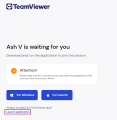 Download Temporary Session Handler
 -
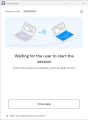 Wait for session start
 -
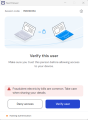 Verify User
 -
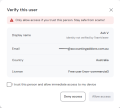 Verify User - Allow Access
 -
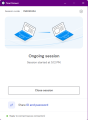 Connection established


Installation restricted by IT policy
If installing apps is disabled by your organisation IT policy, Please let us know in advance.
Support person will generate and share a QuickSupport session URL.
Please follow the steps below to install an alternative Quick Support Session Handler application:
- A Quick Support link of the format https://quicksupport.me/s156010354 would be provided by us. Browse to the link.
- Click on For Windows or For MacOS as per your system configuration.
- A file download dialog will be opened. Once the download is completed, install the Temporary Session Handler.
- Wait for a few minutes until your support person starts the TeamViewer session.
- Once the session is started, you will be asked to verify the person providing you support. Click on Verify user.
- Support person's details would be displayed on the screen. Verify the details and tick the "I trust this person..." checkbox.
- Click on Allow Access.
- Your TeamViewer session with OdataLink will start.
Related Topics
- Getting Ready for your Support session with OdataLink
- Setting up Microsoft Teams for support session with OdataLink