How to manually install TeamViewer on your system: Difference between revisions
Jump to navigation
Jump to search
No edit summary |
No edit summary |
||
| Line 13: | Line 13: | ||
# Various versions of TeamViewer will be displayed in the list below. | # Various versions of TeamViewer will be displayed in the list below. | ||
# Download '''TeamViewer QuickSupport'''. | # Download '''TeamViewer QuickSupport'''. | ||
: Windows Users please [[#Check System Type]] before downloading | : ''Windows Users please [[#Check System Type]] before downloading'' | ||
# Install downloaded TeamViewer_QS installation file | # Install downloaded TeamViewer_QS installation file | ||
# A Microsoft Store dialog box may appear based on your app installation setting. You can change these settings from '''Settings > Apps > Advanced app settings'''. | # A Microsoft Store dialog box may appear based on your app installation setting. You can change these settings from '''Settings > Apps > Advanced app settings'''. | ||
Revision as of 22:33, 13 October 2024


If you are unable to install TeamViewer from Microsoft App Store, you can install it manually.
-
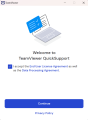 Agree and Continue
 -
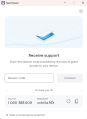 TeamViewer ID and Password


Steps
- Browse to TeamViewer Download Page.
- Your current Operating System will be selected automatically. If not click on the OS installed on your system.
- Various versions of TeamViewer will be displayed in the list below.
- Download TeamViewer QuickSupport.
- Windows Users please #Check System Type before downloading
- Install downloaded TeamViewer_QS installation file
- A Microsoft Store dialog box may appear based on your app installation setting. You can change these settings from Settings > Apps > Advanced app settings.
- Click on Install Anyway.
- After installation is complete, A EULA and Data Processing Agreement dialog box will pop up. Check the checkbox and click on Continue.
- Share your TeamViewer ID and Password with your support person.
- They'll enter your credentials and your TeamViewer session with OdataLink will start.


Check System Type
- Windows users will have to download 32-bit version or 64-bit version of TeamViewer depending on their processor type.
- To check your Processor type, click on Windows button and Type About.
- Click on About your PC System Settings.
- A 32-bit or 64-bit operating system will be specified besides System Type label.
- Select the TeamViewer version based on the bits